








AV Cables Guide: Types, Connectors, Uses, and Wiring Diagrams for AV Systems

AV cables connect displays, DSPs, amplifiers, cameras, microphones, and control systems inside commercial AV environments. This guide explains AV cable types, connector standards, signal behavior, cable schedules, and Audio visual (AV) cable wiring diagram best practices used by professional AV integrators.
Streamline Cable Labeling and Wiring Diagrams with XTEN-AV for Seamless AV Installations
The all-in-one solution for your AV needs
Transform your audio-visual experience with XTEN-AV.
No Credit Card required
Key Takeaways
HDMI 2.1 supports up to 48 Gbps. Passive copper HDMI starts to get unreliable past 15 metres, especially when you’re pushing 4K.
Fiber HDMI can reliably run past 100 metres, critical in larger venues.
HDBaseT and Cat6A infrastructure now underpin most modern commercial AV distribution.
AVIXA standards treat cable labeling and signal flow documentation as core deliverables, not afterthoughts.
Undocumented cable runs are the primary driver of extended troubleshooting time on service calls.
What Are AV Cables?
An AV cable (audio video cable) is a wired connection used to transmit audio, video, control, or data signals between audiovisual equipment (devices).
In professional AV, cables are not accessories. They are the physical infrastructure that determines whether a system works on day one and keeps working on day 1,000.
AV cables carry audio signals, video signals, or both. Some are analog. Some are digital. Each type has a specific application and using the wrong one causes signal degradation, compatibility failures, or complete system downtime.
Beyond the signal type, commercial installers have to think about jacket ratings (CL2, CL3, plenum rated), shielding, bend radius, and also how a cable will act inside conduit or up over a drop ceiling. A cable that looks great in testing on a bench can turn around and fail inside a crowded cable tray, with a sharp 90-degree turn.
Serviceability matters too. Systems need maintenance. If no one documented what’s inside that wall, the next technician spends hours tracing runs by hand. That’s a documentation failure, not a cable failure, but the result is the same.
How do Audio Visual (AV) Cables Work in an AV System?
Every AV cable is a path for a specific type of signal. Understanding signal taxonomy prevents mismatched connections and helps you build logical wiring diagrams.
Signal Type | Examples | Behavior |
Analog audio | XLR, RCA, 3.5 mm | Degrades gradually over distance or interference |
Analog video | Composite RCA, component, VGA | Susceptible to EMI; quality drops with distance |
Digital audio | TOSLINK optical, AES3 | Clean or failed — no graceful degradation |
Digital video | HDMI, DisplayPort, SDI | Binary reliability — works or doesn’t |
Networked AV | Cat6A, fiber | Packet-based; supports AV-over-IP architectures |
Balanced audio | XLR, TRS | Rejects noise through common-mode rejection |
Analog signals degrade gradually. You might see noise, color shift, or buzzing. Digital signals behave differently. There is no analog-style degradation with HDMI or DisplayPort, the signal either meets the threshold or it collapses entirely. Installers call this the “digital cliff.” One moment the display works. Then it doesn’t.
That behavior makes cable quality, run length, and connector seating especially important in digital AV systems.
What Type of AV Cables do You Need for AV setup?
The kind of audio video cables you require will typically be determined by the devices you are linking and the signals you are transmitting. If you are connecting a television to a DVD player, you would require HDMI cables to transmit high-definition audio and video.
Similarly, If you are linking a set of speakers to an amplifier, you will need speaker cables to transmit audio signals from the amplifier to the speakers.
Cable Type | Signal | Max Practical Distance | Common Commercial Use |
HDMI 2.1 | Digital A/V | ~15 m (passive copper) | Conference rooms, displays |
Fiber HDMI | Digital A/V | 100 m+ | Auditoriums, large venues |
HDBaseT (Cat6A) | Digital A/V + control | 100 m | Enterprise AV distribution |
DisplayPort | Digital A/V | ~3–5 m standard | Control rooms, workstations |
DVI | Digital video | ~10 m | Legacy installs |
VGA | Analog video | ~15 m | Retrofit, older equipment |
SDI | Digital video | 100+ m (coax) | Broadcast, live production |
XLR | Balanced analog audio | 100+ m | PA systems, AV production |
RCA composite | Analog A/V | ~10 m | Legacy, consumer |
Component video | Analog video | ~10 m | DVD, legacy displays |
TOSLINK/optical | Digital audio | ~10 m standard | Home theater, AV receivers |
Speaker wire | Analog audio | Varies | Amplifier to loudspeaker |
Cat6A (AV-over-IP) | Networked A/V | 100 m per segment | Scalable AV distribution |
USB-C (DP Alt Mode) | Digital A/V | ~2 m native | BYOD huddle rooms |
Coaxial (RG6) | RF/analog video | Varies | CATV, legacy RF distribution |
HDMI dominates most boardroom and conference room installs. One cable handles video, audio, and HDCP. That’s the upside. The downside is the connector. HDMI has no locking mechanism, and on any display or wall plate that gets moved around, it will work loose eventually.
HDBaseT over Cat6A is the distribution standard in most enterprise AV today. It carries 4K video, audio, control signals, and power over a single Cat6A run. At 100 metres per segment, it handles most floorplan configurations without active fiber.
SDI is the standard in broadcast and live production. It runs over coaxial cable with BNC connectors. That combination handles long distances without signal issues. Cameras, switchers, and pretty much everything else in a production chain runs on it.
XLR is a professional audio cable. Balanced signal, long runs, noise rejection, it just handles it. Any mic line or PA feed in a commercial install should be XLR, full stop.
Fiber HDMI is increasingly the right call in large-format installs like auditoriums, stadiums, conference centers, where runs exceed 15–20 metres and you can’t risk passive copper degradation.
Which Audio video Cable Should You Use?
Scenario | Recommended Cable | Notes |
Conference room display | HDMI 2.1 or HDBaseT | HDBaseT preferred for runs over 10 m |
Boardroom with AV rack | HDBaseT (Cat6A) | Use for display runs; HDMI at endpoints |
Live event audio | XLR | Balanced, shielded, long-distance reliable |
Broadcast production | SDI | BNC connectors, coax infrastructure |
Retrofit with older displays | VGA + 3.5 mm or component | Match source output |
Large venue video distribution | Fiber HDMI or AV-over-IP | Beyond HDBaseT reach |
BYOD huddle room | USB-C to HDMI | Check DisplayPort Alt Mode on device |
Legacy DVD/VHS to modern display | RCA composite + converter | Requires AV-to-HDMI active converter |
Retrofit work is where poor cable selection creates the most problems. You’re often running through finished walls, existing conduit with no slack, or ceilings that haven’t been touched since 2005. Getting the cable type right before the pull saves significant labor.
AV Input vs AV Output vs AV Cable
This confuses clients more than it should.
AV output is where a source device sends its signal, a laptop’s HDMI port, a Blu-ray player’s component outputs, a microphone’s XLR connector.
AV input is where a display, amplifier, or processor receives a signal.
AV cable is the physical path between them.
Signal always flows one way from output to input. Protocols like HDMI’s EDID handshake and CEC run on top of that. But the audio and video signal itself never changes direction. Mapping this in a signal flow diagram software before pulling cable prevents reversed connections on install day.
AV Cable (Cords) Colors
Standard RCA color coding:
Color | Signal |
Yellow | Composite video |
White | Left audio (or mono) |
Red | Right audio |
Blue | Component Pb/Cb |
Green | Component Y (luma) |
Red | Component Pr/Cr |
Note: Red serves double duty in component video for the Pr/Cr channel and in stereo RCA for the right audio channel. Context determines which is which.
The 3.5 mm breakout cable is a frequent source of problems on installs. A typical TRRS-to-RCA cable wires the 3.5 mm plug as left audio / right audio / ground, but some manufacturers use CTIA wiring, others use OMTP. The wrong breakout cable on a laptop headphone jack gives you audio in the wrong channel, no audio at all, or a dead mic input. Check pin assignment before buying in bulk.
HDMI vs RCA vs Optical vs Speaker Wire
Signal Type Comparison
Cable | Carries | Max Quality | Common Application |
HDMI 2.1 | Audio + Video | 8K video, Dolby Atmos | Displays, AV receivers |
RCA composite | Audio + Video | 480i SD | Legacy, consumer |
TOSLINK optical | Audio only | Dolby Digital 5.1, DTS | Soundbars, AVRs |
Speaker wire | Audio only | Analog, passive | Amp to speaker runs |
HDMI eARC vs Optical
Feature | HDMI eARC | Optical (TOSLINK) |
Dolby Atmos (object audio) | Yes (lossless) | No (lossy only) |
DTS-HD MA | Yes | No |
Bitrate | Up to 38 Mbps | ~1.5 Mbps |
Two-way control | Yes (CEC) | No |
Distance limit | Standard HDMI limits | ~10 m |
For lossless audio, Dolby Atmos or DTS-HD Master Audio, HDMI eARC is the only option. Optical hits a hard bandwidth ceiling. It can’t carry lossless formats, full stop. A lot of installers default to optical out of habit, then get a callback because the soundbar won’t decode Atmos. Nine times out of ten, the cable is the problem. Not the soundbar.
When Do You Need an AV-to-HDMI Converter?
When the source has RCA, component, or VGA outputs and the display only takes HDMI.
Retrofit work is full of these situations. A training room still running an old DVD player. A hotel updating its displays but keeping the existing source gear. A client who won’t part with a VCR because they still need the archive footage.
Active converters handle the analog-to-digital conversion. Passive adapters (a simple plug adapter with no electronics) only work when both sides are the same signal type. Plugging a composite RCA into an HDMI adapter without active circuitry won’t produce a picture.
For installs where passive HDMI runs are already hitting 12–15 metres, active HDMI extenders or a switch to HDBaseT is typically the cleaner solution rather than stacking additional cable length with a converter in the chain.
What Should AV Integrators Consider Before Installing AV Cables?
There are some factors you need to take into consideration when choosing AV cables; let’s take a descriptive analysis of the same:
Bandwidth requirements: Know what the source outputs before you spec the cable. A 4K60 4:4:4 or 8K run has completely different requirements than a standard 1080p feed. Get the cable category and HDMI version wrong and you’ll find out on install day.
Shielding: HVAC motors, fluorescent lighting, industrial equipment, all of it generates EMI. Shielded Cat6A and shielded HDMI cost more upfront.
Bend radius: Especially in conduit. HDMI cables in particular fail internally when bent sharply. Standard HDMI has a minimum bend radius around 25–30 mm.
Connector retention: HDMI has no mechanical lock. In equipment racks, secure with velcro or locking adapters. Loose connectors on a rack-mounted distribution amplifier are a common intermittent fault that’s hard to diagnose remotely.
HDCP and EDID: Most content protection issues in AV systems trace back to EDID handshake failures. Extenders, distribution amplifiers, and switchers all need to manage EDID correctly. No signal on a display? Check EDID first. A lot of technicians go straight to swapping cables and miss it entirely.
Jacket rating: Plenum-rated cable is required in air-handling spaces in most commercial buildings. It’s not optional and it’s not a recommendation. Check local code before you pull anything through the ceiling.
Service loops: Leave enough slack at termination points for re-termination. A cable pulled tight to the wall plate with no slack is one bad day from requiring a full re-pull.
Future maintenance access: Conduit is the right call wherever rework is likely. A cable in conduit can be replaced. A cable in hard drywall without conduit means opening walls.
How Should AV Cables Be Documented in Wiring Diagrams?
This is where a lot of AV projects fall apart, not during the install, but after it.
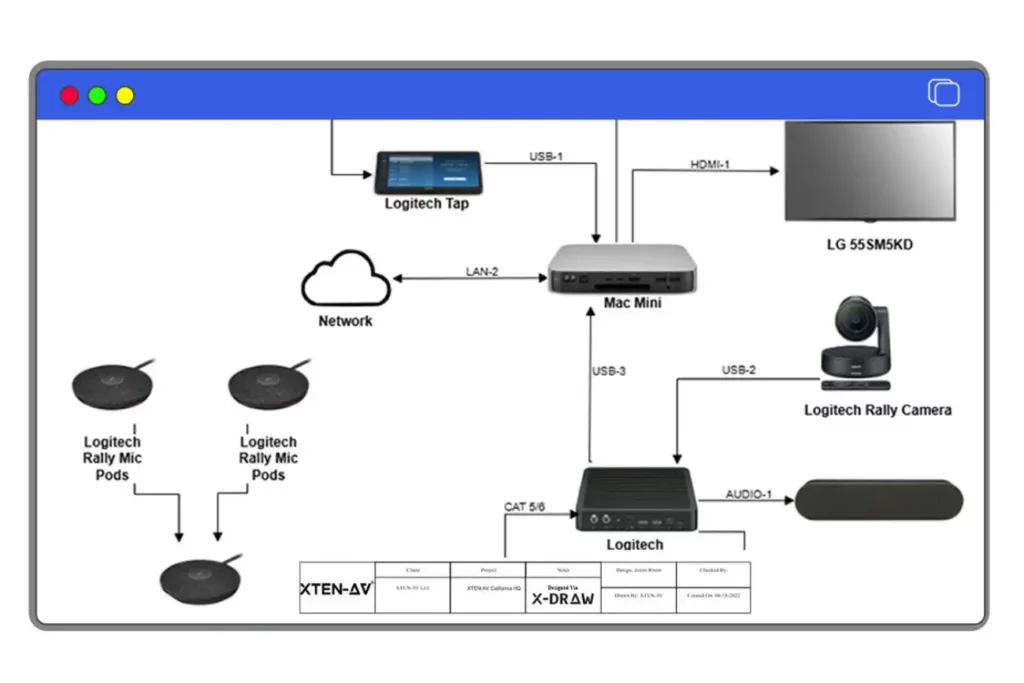
Signal flow diagrams show the logical path from source to destination. Every device, every connection type, every signal direction. Without them, programming drags, commissioning gets messy, and troubleshooting becomes a guessing game, especially painful when you’re already behind schedule.
Wiring diagrams cover the physical side. Pin assignments, connector types, cable IDs, rack locations, everything the next person on that job needs without having to trace a single cable by hand. Audio visual system integrator, designer or engineer comparing tools can review this guide to wiring diagram software for AV equipment integration before selecting a documentation workflow.
Cable schedules are the reference document that ties together cable ID, cable type, source endpoint, destination endpoint, and rack location. Without a cable schedule, a service call on a 40-panel conference room involves tracing unlabeled runs behind walls and inside racks.
AVIXA’s documentation standards treat incomplete drawings and labeling errors as primary contributors to installation rework. Poor cable labeling directly increases mean time to repair on service calls. A system that works at handoff but has no documentation is expensive to support.
Spreadsheet-based cable schedules break down fast. They’re not linked to the system drawings, they get out of sync during install revisions, and they don’t auto-generate labels or BOM line items. The bigger the project, the faster a disconnected spreadsheet becomes a liability.
Which Software is Best for Creating an Audio Visual (AV) Cable Wiring Diagram?
XTEN-AV’s X-DRAW that is cloud-based audio visual (AV) wiring diagram software generates AV system schematics with structured cable schedules built in. Cable IDs, signal types, endpoint labels, all produced as part of the drawing, not as a separate manual process.
When drawings are updated, the cable schedule updates too. That eliminates the manual reconciliation that causes errors on large installs.
The platform’s AI BOM automation pulls cable quantities and types directly from the system design, so procurement and installation teams are working from the same source. Label generation is tied to the cable schedule, print-ready labels come out of the same workflow that produced the drawings.
X-DRAW also includes an AI Connection Check to flag invalid connections, double-check warnings and identify loose connections across AV signal paths. It catches signal type mismatches, connector compatibility gaps and incomplete wiring before they lead to costly cabling errors.
For Audio visual (AV) system integrators and designers handling project handoff and commissioning documentation, having all of this in one place is a genuine time reduction. Less reconciliation, fewer errors, cleaner closeout packages.
Conclusion
AV cables cause more failures in commercial systems than almost any other component. Not always because the cable was bad. Sometimes the wrong type got specified. Sometimes a passive copper run stretched too far. A connector worked loose in a rack. Or nobody documented what was installed.
The fix is straightforward: pick the right cable, install it properly, and document everything from design through closeout. That’s what separates a system that holds up from one that generates callbacks.
FAQs
An AV-to-AV cable connects two devices that share the same connector type. RCA to RCA, is the most common example. These show up in older analog setups. If your source is composite but your display only takes HDMI then it’s not a direct match, you’ll need a converter in between.
An audio video cable carries audio and video signals between devices. In pro AV, common types are HDMI, XLR, SDI, RCA, and Cat6A.
AV cord is a consumer term for any cable that carries audio or video signals. In professional AV, you always specify by signal type: HDMI, XLR, SDI, and so on.
An AV output sends a signal. An AV input receives one. Signal always flows from output to input. Drawing this out in a signal flow diagram before the install prevents reversed connections.
When your source has analog outputs, RCA, component, or VGA, but your display only has HDMI. You need an active converter, not a plain plug adapter. A passive adapter has no circuitry. It won’t produce a picture.
A breakout cable splits one connector into multiple. A 3.5 mm plug splitting into separate RCA cables is the most common type. The problem most installers run into is pin assignment. CTIA and OMTP wire the 3.5 mm plug differently. Buying the wrong one means the channels come out wrong or the mic doesn’t work.
For any modern system, yes. HDMI carries HD digital video and audio in a single cable. RCA tops out at standard definition, it was never built for anything beyond that. It still has a place in legacy installs and retrofit work, but nobody specs it for new systems anymore.
Not if you need real surround sound. Optical has a hard bandwidth limit around 1.5 Mbps and that’s not enough for lossless formats. Dolby Atmos and DTS-HD MA both need more headroom than optical can give. HDMI eARC handles both without breaking a sweat. For any Atmos-capable setup, there’s really no debate.
Passive copper HDMI starts failing past roughly 15 meters at 4K. Beyond that, use active HDMI, HDBaseT over Cat6A, or fiber HDMI. Fiber HDMI can run past 100 metres without signal issues.
You need a tool that builds cable schedules from the drawing itself, not a separate spreadsheet. Visio and AutoCAD don’t do that natively. XTEN-AV’s X-DRAW generates wiring diagrams with cable schedules labeling, BOM output, and label generation built into the same workflow.