








7 Best Floor Plan Software for AV System Integrators

Sahil Dhingra
Published 19 OCT 2026
Planning an AV system requires accurate equipment placement, room measurements and coordination with architectural elements. Displays, projectors, speakers, cameras and racks must be positioned based on sightlines, mounting points and spatial constraints. However, inaccurate layouts and disconnected drawings can lead to equipment placement conflicts, design changes and costly delays during installation.
This is where floor plan design software helps AV integrators. The best software to make floor plans allows designers to create scaled AV layouts, import architectural drawings, position equipment accurately and document mounting locations. With 2D and 3D visualization, integrators can identify spatial conflicts, coordinate with contractors and review equipment placement before installation begins.
From general floor planning tools to CAD-based and AV-specific platforms, different software options serve different project requirements. Choosing the best floor plan software depends on drawing accuracy, AV equipment details, file compatibility, visualization capabilities and technical documentation needs.
In this guide, you’ll learn why floor plan software matters for AV system design, compare the 7 best tools, understand 2D and 3D planning, explore essential features and learn how to create accurate AV floor plans using X-DRAW.
Key Takeaways
- Floor plan software helps AV integrators accurately position displays, cameras, speakers and racks based on room dimensions, sightlines and mounting requirements.
- 2D floor plans support precise equipment placement and technical documentation, while 3D layouts help visualize spatial relationships, equipment clearances and room designs.
- XTEN-AV, AutoCAD, Microsoft Visio, D-Tools, SketchUp, SmartDraw and RoomSketcher offer different floor planning capabilities depending on project requirements.
- AV integrators should prioritize scale accuracy, architectural file compatibility, AV equipment symbols, annotation tools and documentation capabilities when selecting software.
- XTEN-AV’s X-DRAW allows AV professionals to import architectural floor plans, position AV products and connect equipment information with BOMs and system drawings.
What Is Floor Plan Software?
For AV professionals, floor plan software moves beyond simple interior design and serves as the foundational map for system engineering. It is used to map out where equipment goes. This includes displays, projectors, speakers, cameras, racks, touch panels and microphones. A clear layout enables AV designers to verify sightlines, confirm mounting locations and coordinate equipment with architectural elements.
This digital tool is used to create 2D/3D technical layouts that show the size, shape and spatial flow of rooms or buildings from a bird’s-eye view. System integrators find it easier to understand how devices fit within the physical space before the system moves to the field. The best program for drawing floor plans should support accurate measurements, equipment placement and architectural coordination.
Accurate floor plans are one part of AV system documentation. They show equipment locations within the architectural layout, while wiring diagram document device connections, cable types and signal paths.
Why Do AV Integrators Need Floor Plan Software?
An AV layout needs to work in the real room and not just on paper. AV integrators need accurate dimensions to confirm that a display is visible from every seat, a projector has the right throw distance, cameras capture every seating position properly and ceiling speakers give even coverage. Reliable floor planning software lets you verify all of this against actual mounting points, ceiling heights and architectural constraints before the installation team arrives on site.
Here are the key reasons AV integrators need floor plan software:
Position Equipment Against Room Dimensions
Room dimensions have a direct impact on display placement, projection geometry, camera positioning and speaker coverage.
For example, in a 7 m × 5 m conference room, moving a display or camera by 500 mm can change viewing angles, affect camera framing or create conflicts with surrounding architectural elements. A scaled drawing, commonly prepared at ratios such as 1:50 or 1:100 enables equipment positioning against measured walls, floor areas and ceilings.
Coordinate devices with Furniture, doors and Architectural features
AV equipment often shares space with doors, windows, lighting fixtures, furniture and HVAC elements. Hence, AV equipment must be coordinated against structural and mechanical constraints to prevent installation conflicts. A detailed floor plan helps identify potential placement conflicts.
Let’s understand through an example, In a 6-meter-deep meeting room, camera placement should account for the field of view (FoV), conference table dimensions and seating positions to ensure participants remain visible. Similarly, ceiling speaker placement requires careful consideration of dispersion angles, mounting height and room geometry to achieve consistent audio coverage.
Record Exact Equipment Locations
Document device positions using visual and technical standards, not just written instructions. A drawing might specify that a display centerline is 1,400 mm above finished floor, a touch panel is positioned 300 mm from a door frame, or an equipment rack is located within a designated technical area.
Rack planning must be directly tied to equipment capacity to balance vertical space, power distribution, thermal load, and weight limits and prevent system failures. A standard equipment rack is measured in Rack Units (RU or U), where 1 RU equals 44.45 mm (1.75 inches) in vertical height. Understanding AV rack units helps integrators calculate equipment capacity, allocate rack space and account for ventilation and future expansion during system planning. Identifying the rack location and size on the floor plan confirms that the selected space can accommodate the required equipment. This acts as a baseline for preventing costly physical spatial constraints in the future.

Communicate AV Layouts with Clients and Contractors
A scaled floor plan gives AV integrators, architects, electrical contractors and clients a single source of truth, ensuring that technical needs and equipment placement are all aligned perfectly. Instead of assuming that a display should be mounted on the front wall, the drawing can show its exact centerline, mounting height and placement positioning relative to doors, furniture and other room elements.
Coordinating these layouts at an early stage prevents costly change orders and spatial conflicts and confirms positioning before commencing the installation work.
Which Floor Plan Software Fits Your AV Project?
The right floor plan software depends on the project’s technical requirements, drawing accuracy, AV-specific details and visualization needs.
The table below compares the seven options by their strongest use case, 2D/3D capability, free access and key limitation:
| Tool | Best-Fit Use Case | 2D/3D Capability | Free Plan or Trial | Main Limitation |
| XTEN-AV (X-DRAW) |
AV-specific floor plans with equipment placement, product data and connected technical documentation. | 2D/3D floor plans with additional elevation and spatial design capabilities. | 15-day free trial, no credit card required. | Focused on AV system design rather than architectural BIM or photorealistic 3D modeling. |
| AutoCAD | Precise AV floor plans that coordinate perfectly with architectural, electrical and MEP drawings. | 2D drafting and 3D modeling for scaled floor plans. | Free trial available. | steep learning curve, and heavy hardware requirements that can slow down processes. |
| Microsoft Visio | 2D floor plans and technical diagrams. | Accurate 2D floor plans using shapes, tools and custom stencils. | Free trial available. | specific limitations that vary depending on whether you use the full desktop application or the web-based version. |
| D-Tools | Connects floor plan directly to product data, automated engineering and detailed documentation. | 2D plan views and engineering drawings through Visio and AutoCAD integrations. | Free trial available. | D-Tools SI and Cloud have limitations in setup, integrations and design processes. |
| SketchUp | 3D AV room visualization, sightline review and equipment-clearance planning. | SketchUp combines 3D modeling with 2D drafting and documentation capabilities. | Free web version available. | Built around 3D modeling rather than AV engineering data, BOMs or signal documentation. |
| RoomSketcher | Quick AV room layouts, equipment placement and spatial visualization without complex CAD tools. | Creates 2D floor plans and 3D room visualizations with measurements, furniture and room elements. | Free plan available. | Limitations regarding architectural depth and design control. |
| SmartDraw | Scaled 2D AV layouts using existing floor plans, custom equipment symbols and technical annotations. | 2D scaled floor plans with measurements, layers and custom symbols. | Free trial available. | Does not provide advanced 3D modeling. |
What Are the 7 Best Floor Plan Software Options for AV Integrators?
The best software for floor plan depends on whether the project requires AV-specific equipment placement, CAD-level drafting, 3D visualization, architectural coordination or quick room layouts.
Here are the seven floor plan software options covered in this guide:
XTEN-AV (X-DRAW)
X-DRAW is a cloud-based AV design and drawing platform built around the way AV systems are planned and documented. You can create and upload existing AutoCAD and Visio floor plans with editing and customisation features in the same design environment. This augments your existing drawings 10x, and no need to recreate them from scratch. It also supports line schematics, signal flow diagrams, rack layouts, BOMs and other technical AV documentation within the same design environment.

Best For:
AV integrators and system designers who want floor plans connected with actual AV equipment, BOM data and other project drawings.
Key Capabilities:
- Add lines, shapes, text and annotations to imported plans.
- Products added through floor-plan search are automatically included in the project’s BOM.
- Floor plan upload and creation with support for AutoCAD and Visio drawings.
Main Strengths:
- Built around AV equipment rather than generic furniture libraries.
- Cloud-based access supports projects across different locations.
- Equipment placed from a floor-plan product search can remain connected with the Bill of Materials (BOM).
- Multi-room AV BOM management helps integrators organize equipment by room, floor or zone while keeping product quantities aligned with system drawings.
Practical Limitations:
- Users new to AV-specific design software may need some time to become familiar with its equipment, drawing and documentation features.
XTEN-AV Pricing Plans:
- Free Trial
XTEN-AV offers a 15-day free trial. - Basic
$104.25/user/month, billed annually. - Business
$111.75/user/month, billed annually. - Enterprise
$126.75/user/month, billed annually. - X-PRO Add-On
$16.88/user/month, billed annually. Available as an optional add-on.
Platform Support:
X-DRAW is a cloud-based platform accessible on both Windows and macOS. XTEN-AV also provides iOS and Android mobile access.
Export:
Supported export formats include PNG, JPEG, SVG, PDF, Visio, HTML, XML and AutoCAD.
Import:
You can import products, data and floor plans into XTEN-AV.
Source and Verification Date:
Source:
https://xtenav.com/x-draw/
Verification Date:
October 12, 2026
User Review:
One of the users praised XTEN-AV (X-DRAW) for its drawing automation, centralized documentation and ease of creating AV project deliverables.
Review Source:
AutoCAD
AutoCAD is professional CAD software developed by Autodesk for creating precise 2D floor plans, equipment layouts and 3D models. For AV integrators, it is useful when floor plans need accurate dimensions, layered device placement and close coordination with architectural, electrical or MEP drawings.
Best For:
AutoCAD is a strong choice for experienced AV designers seeking the best program to draw floor plans with precise dimensions and CAD drafting tools.
Key Capabilities:
- Comprehensive 2D drafting and 3D modeling capabilities for creating, editing, and managing architectural floor plans.
- Architectural toolset for automated floor plans and thousands of pre-made architectural components and more.
- Add walls, doors and windows using specialized architectural objects.
- The floor plan drawing tool ensures accuracy and precision.
- Track design changes and coordinate floor plans with MEP and structural drawings.
Main Strengths
- Supports both 2D drafting and 3D modelling.
- High dimensional accuracy for detailed technical drawings.
- Technical floor plans show specific details, precise measurements and spatial relationships within a space.
- Improves design accuracy, allows users to explore layouts, track changes and update documentation.
Practical Limitations:
- The learning curve can be significant for users without CAD experience.
AutoCAD Pricing Plans:
- Free Trial
Let users use AutoCAD features before subscribing. - AutoCAD Subscription
Pricing: $2,095/year.
Includes 2D and 3D CAD tools, specialized toolsets, desktop, web and mobile access. - AutoCAD LT
Pricing: $540/year.
Includes 2D drafting and documentation features.
Platform Support:
Available on Windows and macOS, with browser-based access through AutoCAD Web and mobile support for on-the-go use.
Export & Import:
AutoCAD supports DWG and DXF drawing files, along with PDF and other supported formats for sharing and exchanging technical drawings.
Source and Verification Date:
Source:
https://www.autodesk.com/in/products/autocad/overview
Verification Date:
October 12, 2026
User Review:
Users praised AutoCAD for its powerful 2D design capabilities.
Review Source:
Microsoft Visio
Microsoft Visio is a diagramming software that can create electrical diagrams, office layouts, floor plans, organization charts and flowcharts. AV professionals already using Microsoft 365 get a familiar environment for basic equipment layouts and collaborative drawing reviews. As a floor plan program, Visio supports 2D room layouts, equipment diagrams and technical drawings.
Best For:
AV engineers and designers who already work with Microsoft 365 environment and AV professionals who need signal layouts, floor plans and technical drawings with customizable diagram elements.
Key Capabilities:
- Floor-plan layout with accurate, scalable templates and tools to help you visualize function and flow.
- Network templates, shapes and connector tools to simplify the system design process.
- Import existing DWG floor plans into Visio and adjust the scaling to match the required drawing dimensions.
- Custom shapes, stencils and templates for building reusable technical diagrams and adding specialized equipment symbols.
- Physical and logical network diagrams for mapping devices, ports, cables, traffic flow and network relationships.
Main Strengths:
- With Visio in Microsoft 365, create multiple technical diagrams, including floor plans, electrical and network diagrams with easy-to-use and simple templates.
- It supports accessibility features, including Narrator, Accessibility Checker and high-contrast support.
- Familiar interface can make adoption easier for AV professionals already using Microsoft 365 applications.
Practical Limitations:
- Beginners often find the interface complex and less intuitive compared to modern diagramming software.
- Complete functionality is associated with higher-tier plans.
Microsoft Visio Pricing Plans:
- Free Trial
Visio offers a 1-month free trial. - Visio Plan 1
Starts at $5/user/month (billed annually)
Includes web-based diagramming capabilities. - Visio Plan 2
Starts at $15/user/month (billed annually).
Includes both desktop and web applications. - Visio Standard 2024
$309.99, one-time purchase.
Includes desktop diagramming tools with standard templates and shapes. - Visio Professional 2024
$579.99, one-time purchase.
Includes advanced diagramming features and templates.
Platform Support:
Browser-based on Windows and macOS, while its desktop application is exclusive to Windows.
Export & Import:
Import DWG and DXF AutoCAD drawings, along with common image formats such as JPG, PNG and SVG. In Visio, you can save a diagram in PDF or image file format, while diagrams can be exported to formats such as PDF, SVG, PNG and JPEG.
Source and Verification Date:
Source:
https://www.microsoft.com/en-us/microsoft-365/visio
Verification Date:
October 12, 2026
User Review:
Users praised Visio for its ease of creating structured technical diagrams.
Review Source:
D-Tools
D-Tools is system integration software that connects product data, estimating, engineering documentation and project information. With its powerful engineering drawing capabilities, AV professionals can create detailed, engineered drawings, including line diagrams, plan views, rack elevations and schematics. Its native integration with Visio and AutoCAD makes it easy to produce detailed drawings that improve collaboration and project accuracy.
Best For:
AV integration firms that need detailed floor-plan drawings connected with product data, engineering documentation and project management.
Key Capabilities:
- Use industry-specific Visio shapes and AutoCAD blocks for accurate drawings.
- Create engineered drawings using its Visio and AutoCAD integrations.
- Design AV systems with Draw First functionality, with BOMs automatically generated from drawings.
Main Strengths:
- Suitable for detailed AV documentation and larger AV projects.
- Product data and drawings can connect with estimating and AV proposals.
- Combines sales, support, project management and service tools into a unified platform.
Practical Limitations:
- The platform can require more setup and training than standalone floor plan software.
- Product catalogs and equipment specs need updates because of frequent changes in model numbers, materials and compatibility rules.
D-Tools Pricing Plans:
- Free Trial / Demo
D-Tools offers a free demo, while trial options vary by plan. - D-Tools Cloud – Single
The plan starts at $89/month, billed annually. - D-Tools Cloud – Duo
The plan starts at $161/month, billed annually. - D-Tools Cloud – Team
The plan starts at $314/month, billed annually. - D-Tools Cloud – Company
The plan starts at $584/month, billed annually. - D-Tools Cloud – Enterprise
The plan starts at $1,079/month, billed annually. - System Integrator (D-Tools SI)
Starts at $1,800/user/year with a minimum of 5 users.
Platform Support:
D-Tools Cloud is accessible through web browsers on Windows and macOS, whereas D-Tools System Integrator is available exclusively for Windows desktops.
Import & Export:
Exporting and importing data in D-Tools SI or D-Tools Cloud allows you to manage project items, catalogs and reports via CSV or archive files.
Source & Verification Date:
Source:
https://www.d-tools.com/
Verification Date:
October 12, 2026
User Review:
Users praised D-tools for its technical drawings capabilities, intuitive design and quoting features, which simplify collaboration and save time. Users praised D-Tools for its user-friendly design
Review Source:
https://www.capterra.com/p/152733/System-Integrator-SI-2016/#reviews
SketchUp
SketchUp is a 3D modelling platform widely preferred for architectural and spatial visualization used by architects and contractors. For AV professionals, it can be useful when a floor plan needs to progress beyond top-down device placement into room-scale 3D visualization.
Best For:
Architects, interior designers, builders and engineers use it to create, view and modify 3D concepts from initial ideas to construction.
Key Capabilities:
- Intuitive, professional-grade software converts flat 2D shapes into accurate 3D objects with real-world measurements.
- SketchUp models support VR walkthroughs through compatible plugins and rendering tools.
- Team members can collaborate using Trimble Connect to share, view and manage project data in real-time.
- Add equipment and furniture using models from 3D Warehouse into your project.
Main Strengths:
- Free 3D Warehouse to find, upload and share reusable models of equipment, furniture, and room objects.
- Intuitive 3D environment and robust visualization for display sightlines, equipment clearances and client-facing concepts.
- Effective visual representation of how AV equipment fits within a room.
Practical Limitations:
- The platform is primarily centered on 3D modeling rather than detailed AV engineered documentation.
SketchUp Pricing Plans:
- Pricing: Free Plan
Access to SketchUp for Web with basic 3D modeling features. - SketchUp Go
$10.75/user/month, billed annually. - SketchUp Pro
$33.25/user/month, billed annually. - SketchUp Studio
$71.58/user/month, billed annually
Platform Support:
SketchUp supports Windows 10/11 and modern macOS versions, alongside browser-based and iPad applications.
Import:
SketchUp supports importing DWG and DXF CAD files, along with formats such as SKP, JPG, PNG, STL, DAE, KMZ and 3DS, depending on the plan.
Export:
Models can be exported to DWG, DXF, PDF, STL, DAE, KMZ, 3DS, FBX and OBJ, while image exports include formats such as JPEG and PNG.
Source & Verification Date:
Source:
https://sketchup.trimble.com/en
Verification Date:
October 12, 2026
User Review:
AV professionals praised SketchUp for its ease of use and beginner-friendly 3D modeling tools, while also finding it useful for complex projects.
Review Source:
SmartDraw
SmartDraw is a general-purpose diagramming and scaled-drawing platform that supports floor plans, engineering drawings, network diagrams and other technical diagrams. It simplifies the process of designing, documenting and visualizing complex AV installations. It provides a balance between the precision of heavy CAD software and the ease of a drag-and-drop diagramming tool.
Best For:
AV professionals who need quick, scaled 2D floor plans with custom symbols, imported backgrounds and simple technical documentation.
Key Capabilities:
- Drag and drop rooms to your floor plan and add doors, windows, furniture and other elements.
- Import an existing PDF or image floor plan, scale it using a known dimension and draw directly on top.
- Add layers to separate different information such as electrical, HVAC or other building systems.
- Collaborate on drawings in real time and share plans using links.
- Convert measurements into a scaled, editable using floor-plan notation.
- Create custom symbols and organize them into shared custom libraries.
Main Strengths:
- Build accurate scaled floor plans and technical diagrams without complex CAD drawing.
- Supports hundreds of visual formats, including flowcharts, organizational charts, mind maps, Gantt project charts, network diagrams, and floor plans.
- Allows users to create diagrams and floor plans using natural language prompts.
- SmartDraw makes creating floor plans and other scaled layouts easy without CAD complexity.
- Thousands of industry-standard symbols for corporate, engineering, healthcare, security, and emergency/accident reconstruction diagrams.
Practical Limitations:
- It is a general-purpose diagramming and scaled-drawing platform rather than a dedicated AV-specific platform.
- It does not provide the powerful precision engineering, BIM modeling, or dedicated structural design capabilities.
SmartDraw Pricing Plans:
- Free Trial
Best for testing SmartDraw before purchasing an annual subscription. - Individual Plan
Pricing: $9.95/month (billed annually).
Includes diagram creation, templates, and drawing features for individual users. - Team Plan
Pricing: $8.95/user/month (billed annually).
Includes team collaboration, shared folders and administrative controls. - Enterprise Plan
Pricing: Contact Sales.
Includes enterprise features such as SSO, multiple shared folders, and organization-level support.
Platform Support:
SmartDraw works on any platform with a modern web browser, including Windows, macOS, and Linux. It does not offer an offline desktop-only mode and requires an active internet connection.
Import:
Import PDF, JPG, PNG and SVG files for use in drawings and floor plans. It also supports importing Visio VSD and VSDX files, Visio stencils and Lucidchart files.
Export:
Diagrams can be exported as PDF, PNG, JPEG, SVG and Visio files, including VSD/VSDX formats.
Source & Verification Date:
Source:
https://www.smartdraw.com/
Verification Date:
October 12, 2026
User Review:
Users often praise its intuitive interface, quick setup, drag-and-drop design, templates, and floor-plan creation.
RoomSketcher
RoomSketcher is a floor planning software designed for creating 2D and 3D floor plans, room layouts and presentation-ready spatial views. For AV projects, it is useful for planning equipment placement and visualizing how displays, speakers, cameras and other room elements fit within the space.
Best For:
Whether you’re an AV professional working with an existing room, a rough sketch, a blueprint, or just an idea, easily create polished, professional floor plans.
Key Capabilities:
- Create 2D and 3D floor plans with doors, walls, furniture and room objects.
- Generate 3D Floor Plans, 3D Photos, 360 Views and Live 3D for spatial visualization and presentations.
- Add a company logo and name to create branded floor plans.
- Use AI Convert to turn supported computer-generated floor plan images into editable RoomSketcher projects.
- Add measurements and calculate total room or floor areas using built-in measurement tools.
- Use a large library of furniture, fixtures and symbols to build out professional room layouts.
Main Strengths:
- With RoomSketcher Pro and Team, you get access to a large library of furniture, fixtures, and materials to complete any type of project.
- Create complete and detailed site plans in 2D and 3D, making it perfect for real estate, garden design, landscape design and more.
- Flip and rotate your floor plans at the click of a button, making it a perfect choice for multi-unit projects.
- Upload computer-drawn floor plan and let AI convert it into editable digital layout in seconds.
- Projects are stored in the cloud and can be accessed across supported computers and tablets.
Main Limitations:
- RoomSketcher is primarily focused on floor planning and spatial visualization, rather than detailed AV engineering documentation.
- It does not include a built-in commercial AV product database, signal-flow diagrams or AV documentation.
RoomSketcher Pricing Plans:
- Free Version
$0. Includes 2 starter credits, 1 free AI floor plan conversion, 2D and 3D floor plans, 3D snapshots and AI Render. No credit card is required. - Pro
Pricing: $12/month, billed as $144/year.
Includes 5 credits per month, the full furniture library, 3D floor plans, 3D photos, 360 views, print-to-scale output, measurements, total area calculations and custom branding. - Team
Pricing: $35/month, billed as $420/year.
Includes 5 users, 20 credits per month, project collaboration, a larger project archive, onboarding and a dedicated customer manager. - Enterprise
Custom pricing based on business requirements. Includes unlimited users, API integration, custom branding setup, priority support and custom invoicing.
Platform Support:
RoomSketcher is available for download on Windows and macOS computers, as well as iPads and Android tablets.
Import:
You can import an existing floor plan, blueprint, or sketch into RoomSketcher as a PNG, JPG, or PDF file
Export:
Completed 2D and 3D floor plans can be downloaded as JPG, PNG or PDF files. CAD-compatible editable formats such as DWG and DXF are not currently supported for export.
Source & Verification Date:
Source:
https://www.roomsketcher.com/
Verification Date:
October 12, 2026
User Review:
Users liked it because of its ability to create floor plans and drawings quickly.
Should You Choose 2D or 3D Floor Plan Software for AV Projects?
Choosing 2D or 3D floor plan software for AV projects depends on whether there is a need for technical precision for installation or realistic visualization. A 2D floor plan is used when the drawing needs to communicate exact measurements, signal paths and hardware integration points. A 3D floor plan is a good choice when the project requires spatial context or aesthetic alignment. For many commercial AV projects, the best floor plan design software seamlessly bridges 2D technical layout and 3D visual rendering within a single environment.
When Is 2D Floor Plan Software Better for AV Design?
For accurate scaling and equipment mapping without the heavy processing overhead of 3D rendering, 2D floor plan software is often the superior choice for AV design.
Here’s when 2D floor plans work best for AV design:
Technical Precision: Work with true-to-scale room dimensions and place displays, speakers, cameras and projectors accurately against walls and architectural elements.
Documentation and Handoffs: 2D drawings integrate seamlessly into architectural packages and installation blueprints, enabling electricians and on-site techs to read it easily.
Quick Design Reviews: Checking whether display sizes match viewing distance or if seating capacity fits microphone coverage, a 2D layout cuts unnecessary modeling time.
When Is 3D Floor Plan Software More Useful?
Using 3D floor plan software is a preferred choice when equipment placement needs to be evaluated in relation to room height, seating, mounting surfaces and other physical elements. Additional spatial context is critical for AV systems as it impacts how light and sound interact with a room.
Here’s when 3D floor plans work best for AV design:
Evaluating Spatial Relationships: AV professionals can use 3D layouts to check how displays, projectors, speakers, cameras and other devices relate to room height, seating and architectural elements. It is considered a good choice for checking sightlines, mounting clearances and any placement conflicts.
Checking Equipment Visibility and Coverage: When creating AV designs for conference rooms, classrooms and auditoriums, 3D views can be useful for visualizing equipment placement, sightlines and potential spatial conflicts.
Presenting AV Designs to Clients: 3D floor plans are definitely the best choice for making technical layouts easier to understand for non-technical stakeholders. Clients can simply see how AV equipment will fit within the design, helping them review placement and overall layout before approval.
A standard meeting room may need only a detailed 2D technical layout. While auditoriums, classrooms, training spaces and multi-display environments combine 2D with 3D analysis. For residential AV projects, such as home theaters, smart homes and multi-room audio systems, 3D floor plans help integrators visualize speaker placement, display sightlines, seating arrangements and equipment clearances. Hence, the best floor planning software for AV integrators is not necessarily the tool with the most advanced 3D rendering. It is the one that provides the level of dimensional accuracy, equipment detail and spatial analysis based on the project needs.
Which Free Floor Plan Software Options Are Suitable for AV Layouts?
Free floor plan software can be suitable for basic AV layouts, equipment placement and early-stage design reviews, but free plans often limit exports, project counts or commercial use.
Before choosing free floor plan software, check the following:
Number of Projects: Check how many floor plans or projects you can create under the free plan limit.
Dimensions and Scale: Check whether the software supports the true-to-scale drawings, wall dimensions, equipment offsets and mounting references required for project coordination
Custom Objects or Symbols: Check whether you can create or import symbols for displays, cameras, speakers, racks and other AV equipment.
Export Quality: Verify whether drawings can be exported at usable resolution and scale in formats such as PDF, PNG, SVG, DWG or DXF, and whether free exports include watermarks.
Commercial Use: Confirm whether the free version permits use on client and commercial AV projects or is restricted to personal use.
Paid Features: Features such as CAD import, print-to-scale output, advanced measurements, 3D visualization and high-resolution exports may require a paid plan.
Access Expiry: Check whether free access is permanent, credit-based or limited to a fixed trial period.
What Should AV Integrators Check Before Choosing Floor Plan Software?
For AV integrators, the best floor plan software should combine scale accuracy, architectural file compatibility and AV-specific documentation in one environment. It should make it easier to move from base architectural drawings to detailed AV layouts with accurate equipment placement, AV symbols and scaled dimensions.
Here are the key points to consider before choosing the best floor plan layout software:
AV Product Symbols and Product Data
Generic icons are not sufficient for detailed commercial AV layouts. It is essential to look for software that helps place PTZ cameras, projectors, loudspeakers, racks, microphones and control devices using AV-specific symbols. The feature to add custom products is also important in case of a missing product from the standard library.

File Compatibility
Many AV projects start with an architectural base drawing instead of a blank canvas. The best software should enable designers to bring those existing plans into the project and add AV devices without rebuilding the room geometry from scratch.
Useful file support are:
- DWG for CAD drawings
- PDF for architectural plan sets
- SVG for scalable graphics
Site Capture, Cloud Access
For site survey, check whether the software can capture measurements, photos and room conditions from a mobile device. In addition, cloud access is also useful when the same drawing needs to be reviewed from the office and the field. The best software stores design information in the cloud and supports shared access instead of relying on local drawing files.
Field Reporting and Digital Takeoffs
Field access lets technicians use the floor plan as a working site reference. The software should support field markups, cable path annotations, device-location updates, measurements and quantity takeoff from the drawing. Installation teams can record site conditions, flag issues, and confirm equipment requirements against the AV layout. This improves installation accuracy and prevents delays.
2D and 3D Design Modes
An effective floor plan software should offer 2D layout tools and 3D visualization. 2D floor plans are a good choice for scaled device placement, dimensions and architectural coordination. And, 3D views help check sightlines, clearances and how equipment fits within the space.
How Do You Create an AV Floor Plan in X‑DRAW?
To create an audio visual floor plan, follow the listed below steps:
Create a Design
Open X-DRAW tab and select create design. Enter the design details, then choose design type, template and project from the drop-down menu. Existing projects can be selected or a new project can also be created at this stage.
Add or Import the Floor Plan
Start with a new layout or upload an existing architectural floor plan. X-DRAW supports JPG, PNG, JPEG, DWG and SVG files. This lets AV designers select the desired floor plan from the device. Once it is complete, the floor plan can be seen under the Your Floor Plans Section.
Add AV Products
Open the Search & Add Product page to select displays, projectors, cameras, microphones, speakers, control devices and equipment racks. Choose products from X-DRAW’s AV product library or add custom devices through My Library. Position each device according to room dimensions, viewing angles, speaker coverage and mounting requirements.
Mark Up the Floor Plan
Use X-DRAW’s drawing and annotation tools, including lines, shapes and text, to identify equipment locations, mounting points and site references. Mark device positions relative to walls, doors, furniture and other architectural elements to support coordination with installers and contractors.
Review Equipment and Documentation
Verify equipment positions against the room layout, checking display sightlines, camera coverage, speaker locations and available mounting space. Products added through the X-DRAW Editor can update the Bill of Materials (BOM), helping maintain consistency between equipment shown on the floor plan and the project product list.

Save the Floor Plan
Save the completed floor plan layout. This can be used as a reference for client review and architectural coordination. For residential applications, explore our guide on how to design an accurate home theater floor plan using XTEN-AV to plan seating layouts, speaker positions, display locations and equipment placement.
Ready to Create Accurate AV Floor Plans?
Conclusion
The best floor plan software for AV integrators should do more than place devices on a room layout. It should help translate real room dimensions into accurate AV decisions, whether that means checking display sightlines, projector throw distance, camera coverage, speaker placement, rack locations or mounting clearances.
For simpler projects, a scaled 2D floor plan may be enough. More complex environments may require 3D visualization, architectural file imports, field markups and equipment data that stays connected with the wider AV deliverables. Want to see how this works on a real AV project? Schedule a Demo with XTEN-AV.
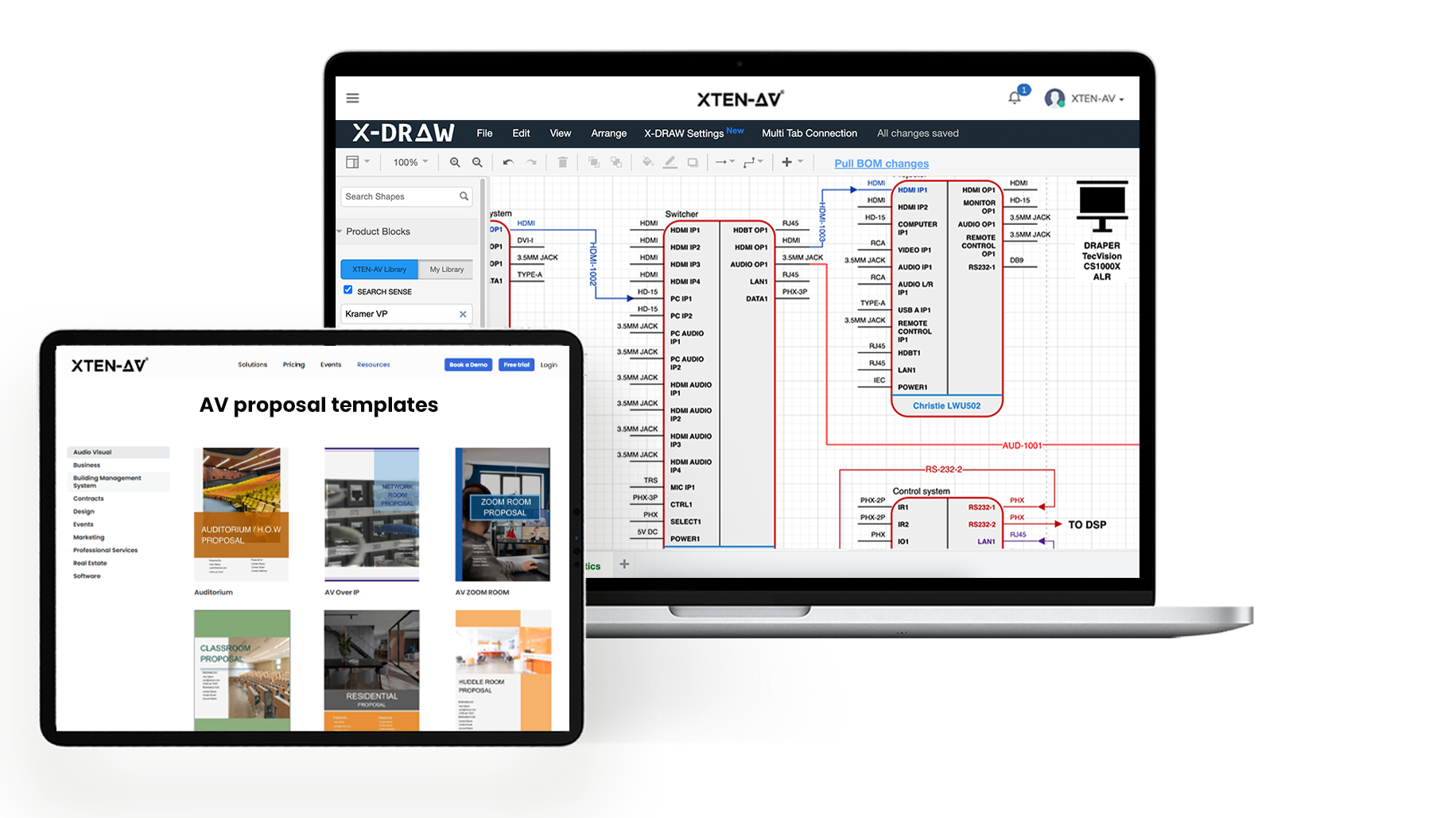
XTEN-AV’s X-DRAW allows AV professionals to create or import floor plans, place actual AV products, annotate equipment locations and keep floor-plan data connected with BOMs and other system drawings in the same design environment.
Audio Visual System Design Mastery + Winning Proposals = 10x Productivity!
- ✔ Automatic Cable Labeling & Styling
- ✔ 100+ Free Proposal Templates
- ✔ Upload & Create Floor Plans
- ✔ 1.5M+ Products from 5200 Brands
- ✔ AI-powered 'Search Sense'
- ✔ Legally Binding Digital Signatures
FAQs
RoomSketcher and SmartDraw are beginner-friendly, while X-DRAW is better suited to AV professionals who need equipment-focused layouts.
Yes, browser-based tools such as X-DRAW for Web allow you to create floor plans online.
Yes, some floor plan programs let you import PDFs or images, set the scale and add editable equipment, dimensions and annotations over the base drawing.
Use 2D for scaled equipment placement and technical documentation, while 3D is useful for checking sightlines, clearances and spatial relationships.
Yes, many professional floor plan tools support scaled PDF or CAD outputs, although export options may depend on the selected plan.
Yes, but general room planners may lack AV product data, equipment symbols, BOM connections and detailed technical documentation.
Floor plan software uses room dimensions, walls and architectural elements to create a scaled 2D or 3D layout where equipment and other objects can be positioned.
Yes, many tools support architectural drawings in formats such as PDF, DWG, DXF or images so you can build the AV layout over an existing plan.
Yes, most floor planning tools let you add furniture, doors, windows and fixtures to coordinate AV equipment with the physical room.
Some modern platforms offer AI-assisted design features, but capabilities vary and may not replace detailed AV-specific placement and engineering checks.
AV integration involves placing displays, projectors, cameras, speakers, microphones, racks and control devices against room dimensions, mounting locations and architectural constraints.

Explore more by topic
Related Blogs
-

- Posted by Sahil Dhingra

Audio Visual 7 Best Floor Plan Software for AV System Integrators Sahil...
-
- Posted by Sahil Dhingra
Audio Visual AV Cables Guide: Types, Connectors, Uses and Wiring Diagrams for...
-
- Posted by Sahil Dhingra
Audio Visual Courtroom Audio Visual (AV) Systems: A Complete Guide for Courts...

AV Design Mastery + Winning Proposals = 10x Productivity!
- Automatic Cable Labeling & Styling
- 100+ Free Proposal Templates
- Upload & Create Floor Plans
- 1.5M Products from 5200 Brands
- AI-powered ‘Search Sense'
- Legally Binding Digital Signatures
No Credit Card Required