








AV Cables Guide: Types, Connectors, Uses and Wiring Diagrams for AV Systems

Sahil Dhingra
Published 19 OCT 2026
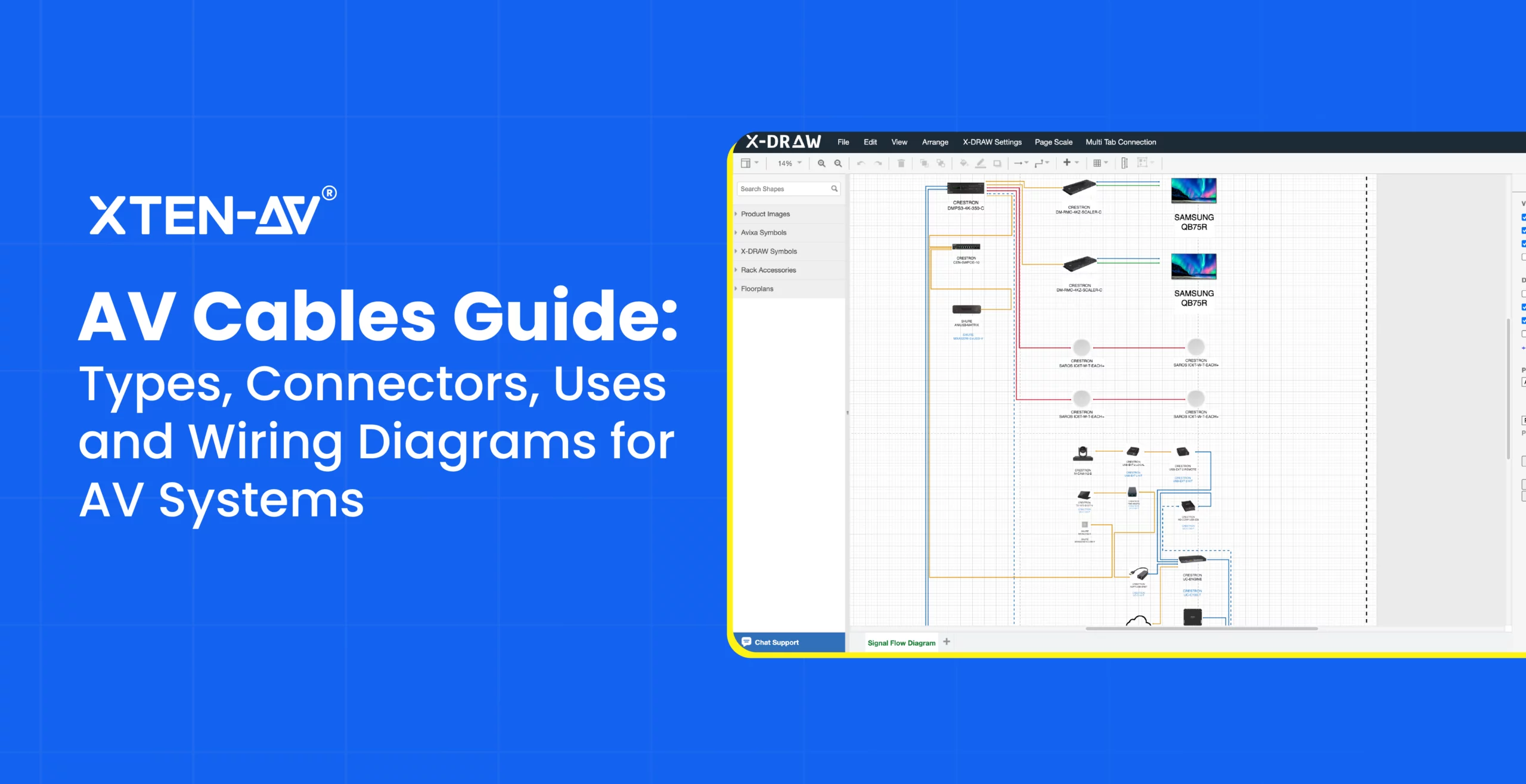
AV cables transmit audio, video, control and network signals between interconnected devices in commercial audiovisual systems. Some common types are HDMI, DisplayPort, USB-C, XLR, SDI, Ethernet, speaker cables and fiber optic cables. The choice depends on key factors such as signal type, required bandwidth, AV connector compatibility and installation site conditions.
For AV system integrators, choosing compatible cable is only one part of the complete process. Proper cable routing, precise signal flow diagrams, clear cable labeling, connection checks and pre-commissioning testing are necessary to prevent signal issues. These practices also simplify future troubleshooting.
In this guide, we explore various types of audiovisual (AV) cables, their use cases and key selection factors for the commercial installation process. It also explains how to create wiring diagrams, test connections and troubleshoot common problems.
Key Takeaways
- Different AV cable types support specific audio, video and data transmission requirements.
- Audio visual cable selection relies on bandwidth, resolution, transmission distance and connector compatibility.
- AV wiring diagrams and cable schedules are crucial for accurate AV system design, installation and maintenance.
- Proper cable routing, labeling and testing help prevent signal loss, physical damage, connectivity issues and troubleshooting delays.
- X-DRAW automates cable labeling, signal flow mapping and wiring diagrams to identify connection errors before installation.
What are AV Cables?
AV cables are physical connections used to transmit audio, video, control and data signals between connected devices in an AV system. They connect equipment such as displays, microphones, speakers, cameras, amplifiers and digital signal processors (DSPs).
Professional AV systems rely on specific cables to manage low-noise audio, high-bandwidth video and networked control signals. For example, HDMI cables transmit digital audio and video, XLR cables carry balanced audio signals and Ethernet cables support networked AV equipment and AV-over-IP applications.
For AV integrators and system designers, understanding these differences is vital for planning reliable connections, maintaining signal quality and creating accurate AV cable diagrams.
How do AV Cables Work in an AV System?
In a professional AV system, signals typically travel from source devices through processing equipment to the output devices via the appropriate cable connections.
The way an AV cable carries the signal is going to be different depending on whether it’s an analog or a digital signal.
Analog vs. Digital AV Signals
Analog AV signals carry the audio or video as a continuously varying electrical signal. You’ll find them in microphone connections, audio equipment and old video systems. Analog signal quality can be affected by electrical interference, cable length and transmission distance.
Digital AV signals carry the information as binary (0s and 1s). They’re the signal of choice in most modern AV systems via HDMI, DisplayPort, USB-C and network AV. Digital connections can support high-resolution video and multi-channel audio, but their performance is obviously going to be dictated by cable quality, bandwidth and transmission distance.
Understanding Signal Flow
Input, Output and Cable Connections Signal flow describes how audio, video and control signals travel between the various AV devices that are connected.
A typical AV system will have three stages:
- Input (Source): Devices such as laptops, mics, cameras and media players produce audio and/or video signals.
- Processing: Equipment such as AV switchers, DSPs and amplifiers route, process and/or condition the signal.
- Output (Destination): The final audio or video is reproduced by displays, projectors and speakers.
For example, in a conference room, a laptop sends video through an HDMI cable to an AV switcher, which routes the signal to a display. Similarly, a microphone sends audio to a DSP, which processes it before the signal reaches an amplifier and speakers.
Understanding signal flow helps AV integrators identify the correct cable connections, plan equipment layouts and troubleshoot signal issues.
What Are the Different Types of AV Cables?
From HDMI and XLR to Ethernet and fiber optics, AV cable types differ in their signal capabilities and applications.
Here’s a quick comparison of the cables commonly used in professional AV systems:
| AV Cable Type | Signal Type | Bandwidth | Transmission Distance | Common Applications |
| HDMI Cables | Digital audio and video. | 18Gbps (premium high speed HDMI), 48Gbps (ultra high speed HDMI). | Depends on cable rating, signal format and construction. | Connect laptops, media players, AV switchers to displays and projectors. |
| DisplayPort, DVI and VGA Cables | Digital video and audio (DisplayPort), digital video (DVI) and analog video (VGA). | DisplayPort: upto 80 Gbps, VGA and DVI vary by interface. | Transmission distance depends on signal format, resolution, interface specifications and cable quality. | Used for control rooms, workstations and legacy displays. |
| USB-C and Thunderbolt Cables | Digital video, audio, data and power (as applicable). | Up to 80 Gbps for USB4 and thunderbolt 5 bidirectional modes. | Cable- and mode-dependent; high-speed passive cables are generally short. | Connect laptops, docking stations, conference cameras and BYOD systems. |
| XLR, RCA, TRS and 3.5 mm Audio Cables | Primarily analog audio; some connector types also support digital audio formats. | Not applicable to analog audio. | Balanced audio can exceed 100 metres, whereas unbalanced runs are usually shorter. | Connect microphones, mixers, DSPs, and more. |
| Speaker Cables | Amplified analog audio. | Not applicable. | Depends on wire gauge, acceptable power loss and impedance. | Connect power amplifiers to passive loudspeakers in auditoriums, PA systems and conference rooms. |
| SDI and Coaxial Cables | Depending on the type of interface, digital video or RF signals. | SDI: approximately 1.5–12 Gbps for common HD-to-UHD formats. | For 12G-SDI using suitable coaxial cable, achieving a distance of 50 to 100 m is the benchmark standard for high-end professional broadcast installations. | Professional cameras, video switchers and RF distribution. |
| Ethernet, Cat6/Cat6A, and HDBaseT Connections | Network data, audio, video and control signals transmitted over compatible twisted-pair cabling. | Ethernet: 1–10 Gbps; HDBaseT 3.0: 16 Gbps link rate. | Up to 100 m for qualifying Cat6A Ethernet and HDBaseT links. | Enable AV-over-IP, HDBaseT extenders, networked audio and enterprise AV distribution. |
| Fiber-Optic AV Cables | Optical transmission of digital audio, video, or network data. | Depends on transceiver and protocol. | Hundreds of meters to several kilometers. | Support long distance AV distribution across large events, campuses and high bandwidth applications. |
How to Choose the Right AV Cable for Your Application?
Selecting the AV cables relies on signal requirements, equipment compatibility and transmission distance. Installation teams need to check the supported bandwidth, resolution and site conditions. Longer runs may require active cables, extenders or fiber-optic links.
Following are the key cable selection considerations for various AV applications mentioned below:
Cables Used in Conference Rooms and Boardrooms
In conference rooms, the HDMI cable used is determined by the resolution, refresh rate, bandwidth and supported capabilities of connected devices. Longer cable runs may require active optical HDMI cables or HDBaseT extenders over Cat6/Cat6A cabling. Verify Extended Display Identification Data (EDID) communication and High-bandwidth Digital Content Protection (HDCP) compatibility between the source, switcher and display.
Cables Used in Auditoriums and Large Venues
Many auditoriums utilize long cable runs and distributed audio systems. For long runs of balanced audio signals, use quarter-inch TRS connectors. For long-distance digital audio or video distribution, consider fiber-optic cables.
Cable selection is also an important part of auditorium sound system design, where microphones, DSPs, amplifiers and loudspeakers must be connected across large spaces.
Cables Used in Live Events and Broadcast Systems
Many broadcast systems utilize 75-ohm SDI Coaxial cables with BNC connectors. 3G-SDI, 6G-SDI, or 12G-SDI cabling may be appropriate for video signals, based on the format and required transmission distance. For live, or program audio, balanced XLR cables are used. During setup and teardown of AV systems, it is important to use strain relief and good AV Cable management.
Cables Used in Video Conferencing and BYOD
Due to the requirements of USB Power Delivery (PD), not all USB-C ports are the same. Not all USB-C cables support the same features. USB-C cables used with video conferencing endpoints should support USB 3.0 and Display Port Alt Mode to ensure the required video and audio bandwidth is available.
Choosing Cables for Legacy AV Equipment
Legacy equipment can be connected via VGA, DVI, composite video or analog RCA audio ports. Before specifying adapters, verify signal format, connector pinouts and supported resolutions. Converting VGA to HDMI requires an active analog-to-digital converter, while some DVI-D to HDMI connections can work with passive adapters. Check audio compatibility separately at the time of connecting legacy video equipment to modern displays.
What Should AV Integrators Check Before Specifying AV Cables?
AV integrators need to check that the selected cabling meets the system’s performance, connectivity and installation needs before finalizing an audio visual cable specification.
The listed factors below help prevent signal failures, compatibility issues and costly changes during AV cable installation:
Resolution, Refresh Rate, and Bandwidth Requirements
Calculate the required video bandwidth based on resolution, refresh rate, color depth, and chroma subsampling. For example, 4K at 120 Hz generally requires greater link bandwidth than 4K at 60 Hz. To ensure a stable video and audio signal, the source, cable, switcher and display should support the intended signal format. For HDMI connections, select cables with the appropriate certified bandwidth rating.
Maximum Transmission Distance and Extender Requirements
Measuring the complete cable route includes tracing the physical path through all structural transitions, equipment rack connections and service loops. The required distance against the manufacturer’s specifications for the intended signal format should be compared. If the distance exceeds the supported limit, consider active optical cables, HDBaseT extenders, or fiber-optic transmission.
Comparing copper cables vs. fiber-optic cables allows AV integrators select suitable cabling on the basis of transmission distance, bandwidth, interference risks and installation costs.
Connector Compatibility and Active vs. Passive Cables
Verify connector types, port capabilities and signal direction before specifying AV cables. Passive cables simply transmit signals without any internal amplifiers. Active cables contain electronics that assist in maintaining signal integrity and reaching greater lengths, although they require external power supplies and installation in the proper direction. With USB-C, make sure your ports support DisplayPort Alt Mode, USB data rates and power delivery if applicable.
Shielding, EMI, Bend Radius and Cable Jacket Ratings
Consider cable routing conditions, especially near electrical equipment, power distribution and populated AV racks. Proper shielding and termination stop electromagnetic interference (EMI) and maintain signal integrity. It is crucial to follow manufacturer bend-radius and pulling-tension limits to prevent damage to conductors or optical fibers.
What Should You Know About AV Cable Connectors, Color Codes and Converters?
AV cable connectors determine how equipment interfaces with audio, video and control signals. Understanding connector configurations, color codes and signal conversion requirements helps AV integrators establish compatible connections between modern and legacy equipment.
| AV Connector | Compatibility Requirements |
| HDMI/DisplayPort | Verify supported video formats, port capabilities and HDCP compatibility. |
| USB-C/Thunderbolt | Check video output support, USB power delivery needs and data transfer capabilities. |
| BNC | Match connector impedance and signal standards such as 75-ohm connections for SDI video. |
| XLR/TRS/RCA | Check balanced or unbalanced audio, connector points and signal levels. |
| LC/SC Fiber | Match fiber type, optical transceiver specifications and connector polish. |
| RJ45 (8P8C) | Verify Ethernet or HDBaseT compatibility, supported link requirements and cable termination. |
RCA Audio and Video Cable Color Codes
RCA connectors use standardized color codes to route audio and video signals accurately between legacy devices. These color codes help distinguish signals when connecting legacy AV equipment.
| RCA Color | Signal | Function |
| Yellow | Composite Video | Carries analog video. |
| White | Left Audio | Carries mono audio and left stereo. |
| Red | Right Audio | Carries right stereo audio. |
| Green (Y) | Component Video | Carries synchronization and luminance. |
| Red (Pr) | Component Video | Carries the red color-difference signal. |
| Blue (Pb) | Component Video | Carries the blue color-difference signal. |
Note: Red RCA connectors are used for both right-channel audio and component video. Always check equipment port labels before making AV cable connections.
When Do You Need an AV-to-HDMI Converter?
You need an AV-to-HDMI converter when you want to connect an older analog device with white, yellow and red RCA cables to a modern display that only includes digital HDMI input ports.
An AV-to-HDMI converter (or RCA-to-HDMI adapter) transforms analog composite video and stereo audio signals (yellow, red and white RCA cables) into a digital 720p or 1080p HDMI signal.
Common conversion requirements include:
- Composite RCA to HDMI: Converts older composite video signals from older DVD players, or other legacy equipment into digital HDMI.
- Component Video to HDMI: Converts analog YPbPr video into digital HDMI signals.
- VGA to HDMI: Transforms analog video signals from older computers into HDMI outputs.
How to Create an AV Cable Wiring Diagram?
An AV cable wiring diagram maps how audio-visual equipment connects, showing exact signal paths, port assignments and labelled cable runs. To create an AV cable diagram, AV integrators need to map their input and output ports, assign cable types and document each connection with a unique cable ID.
Follow these steps to create an AV cable wiring diagram:
Identify AV Equipment:
List source devices (laptops, cameras, microphones), processing devices (DSPs, displays, switchers, receivers or scalers), output devices (displays, projectors, amplifiers, speakers) and control systems.
Map Input and Output Ports:
Record the exact port name and number for every signal origin, such as HDMI Out 1, MIC Input 2, or Balanced Out L/R. Map compatible connections and note where signal converters or adapters are required.

Assign Cable Types:
Assign HDMI, XLR, SDI, Cat6A, or fiber-optic cables based on signal format, required bandwidth, transmission distance and connector compatibility.
Document Cable Connections:
Give each physical cable a unique identifier, such as VID-001 or AUD-001. Record the source and destination device tags, port numbers, cable type and estimated cable length in a cable schedule.
AV wiring documentation serves two purposes: showing how signals travel between devices and identifying the physical connections installers must make.
To fulfill both purposes, professional AV installers typically rely on two distinct types of diagrams: signal flow diagrams and physical line diagrams.
Signal Flow Diagrams vs. Physical Wiring Diagrams
A signal flow diagram shows the logical movement of audio, video and control signals between AV devices. For example, it illustrates how a microphone connects to a DSP, which routes processed audio to an amplifier and loudspeakers. The purpose is to help engineers and programmers understand system logic, signal types and processing chains.
With the right schematic drawing software AV system engineers can create accurate signal flow diagrams, document equipment connections and maintain consistent cable details.

A physical AV wiring diagram documents equipment interconnections, including connector types, port assignments, cable IDs, patch panel connections and termination details. Actual cable routes and equipment locations can be documented separately in floor plans and rack drawings.
To translate these documented connections into accurate field work, installers also need consistent cable identification and records for each physical cable run.
Cable Schedules, Cable IDs and Labeling Best Practices
A cable schedule gives a detailed record of every physical connection represented in an AV cable wiring diagram. It includes cable types, cable IDs, port numbers, termination locations, source and destination types.Maintaining consistent cable IDs, diagrams and schedules is a crucial part of AV standardization, allowing AV integration firms keep technical documentation uniform across projects.
For accurate AV documentation, follow these cable labeling practices:
Assign unique cable IDs:
Consistent identifiers should be used such as AV-HDM-001 or AV-AUD-002, throughout the project.
Label both ends:
Apply durable, machine-printed labels of both cable terminations.
Identify exact ports:
To accurately map your system, provide the details of your setup. Record connections like DSP-01 OUT-01 → AMP-01 IN-01 rather than listing device names alone.
Match labels with diagrams:
Keeping cable IDs consistent across your wiring diagrams, cable schedules and rack elevation layouts prevents critical installation errors and vastly simplifies future troubleshooting. This is a best practice for electrical and network documentation.
Update as-built records:
Document changes to cable connections and terminations after installation is crucial for safety and maintenance.
Automate AV cable documentation and Identify connection errors with X-DRAW.
What Should AV Integrators Check During AV Cable Installation, Testing and Troubleshooting?
Proper AV cable installation involves structured routing, clear terminations and thorough pre- commissioning verification. AV integrators should verify cable performance, identify connection faults and confirm that each signal path operates as specified.
Use the following checklist during installation, testing and troubleshooting:
Cable Installation Checklist
Check Cable Routes: Cable pathways need to be verified against floor plans and rack elevation drawings. This ensures proper routing, capacity and system performance. Maintain the required separation from electrical power circuits and avoid sharp bends, excessive pulling tension and cable compression.
Secure and Organize Cables: Use overhead or under-floor cable trays to establish dedicated pathways. Always prefer hook-and-loop fasteners and strain relief elements such as lacing bars, lacing strips and standoff clamps to support AV cable management. Maintain accessible service loops and avoid overtightening bundles to extend the lifespan of rack mounted hardware and cables.
Verify Cable Terminations: Check proper connector seating, pin mapping, shielding continuity and matching physical labels against the master documentation guarantees that the infrastructure meets performance standards and prevents intermittent failures down the line.
AV Cable Testing Checklist
Test Continuity and Wiring: Use suitable cable testers to identify open circuits, short circuits, crossed conductors and incorrect pin assignments. Test balanced audio and speaker connections for correct wiring.
Verify Signal Performance: Test HDMI and SDI connections at the required resolution and refresh rate. Check HDCP/EDID negotiation where applicable, audio channel routing and signal stability. This is a standard quality control checklist for video engineering, live production or AV integration.
Test Network and Fiber Connections: Check Ethernet wiremaps and link performance. Where certification is required, test parameters such as insertion loss, return loss, and crosstalk. For fiber-optic links, measure optical loss and verify connector cleanliness and polarity.
AV Cable Troubleshooting Checklist
No Video or Intermittent Display: verify source selection, connector seating, cable integrity and HDMI/SDI signal compatibility. To isolate the fault effectively, connect your known-good cable or signal analyzer directly to the signal source and systematically test each segment of your network or system.
Audio Noise or Signal Loss: This happens due to bad cables, grounding loops or wrong settings. Issues can be fixed by inspecting XLR/TRS wiring, grounding and connector terminations. Check for electromagnetic interference (EMI), incorrect gain settings and unbalanced connections over excessive distances.
Network or Control Connection Failure: To resolve a network or control connection failure, check Ethernet link status, cable terminations, verify PoE availability where required and network configuration. Test with a cable tester to identify physical faults before investigating device settings. Replace the suspect patch cable or test the device on a working switch port to find if the fault follows the cable, the port, or the end device.
The final crucial step is to formalize the test data into the network records. Documenting your findings ensures long-term reliability and streamline handovers between installation and maintenance teams.
Which Software Is Best for Creating an Audio Visual (AV) Cable Wiring Diagram?
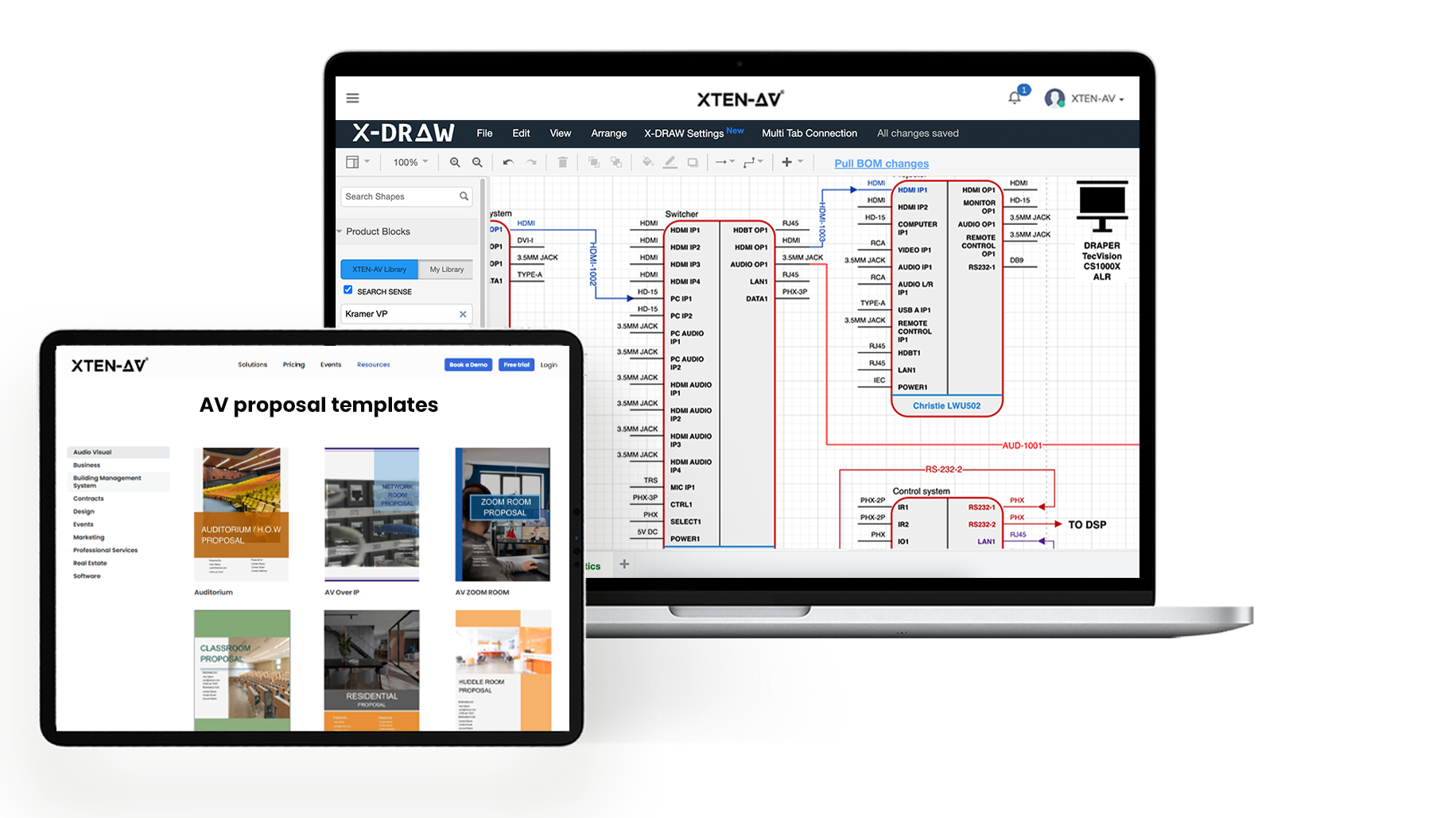
Manual wiring diagrams can lead to missed connections, inconsistent cable labeling or documentation errors. Specialized AV wiring diagram software helps integrators minimize these issues by automating the complete process. Design engineers can choose XTEN-AV (X-DRAW), a cloud-based schematic design platform that automates cable labeling and uses AI-powered connection checks to identify invalid connections. It supports AVIXA-standard symbols and includes a library of 1.5M+ products from 5,200+ brands. The AV platform also generates 12 types of drawing documentation, including signal flow diagrams, rack layouts, cable schedules, submittals, scopes of work,front elevations and many others.
Here are the key capabilities of X-DRAW for AV cable wiring diagrams:
Automated Line Schematics: Generate detailed schematics and signal flow diagrams showing equipment connections and signal paths without manually drawing every connection.
Automatic Cable Labeling & Styling: Apply cable identifiers, numbering and styling to maintain consistent documentation across AV designs. This helps installers get accurate and labelled schedules.
Automated Cable Schedules: Generate complete cable list with source, destination, cable type and label that automatically derived from signal routing.
AI Connection Check: Detects invalid signal connections, flag connector compatibility issues requiring review and identify loose cable endpoints. Each flagged item is labelled with its cable ID and an explanation.

Integrated BOM Generation: Generate equipment lists with product quantities, part numbers and pricing from the same AV design.

By bringing AV system design, cable documentation and connection validation into one platform, this cloud-based AV design platform helps AV integrators prepare accurate wiring documentation, identify potential connection errors and minimize manual efforts.
Conclusion
The right choice of AV cables is crucial to ensure reliable system performance and proper signal transmission. From HDMI and XLR to Ethernet and fiber optics, AV integrators need to confirm bandwidth, transmission distance and connector compatibility to prevent connectivity issues.
Proper AV cable wiring diagrams, consistent labeling and proper testing are vital for successful system deployment. X-DRAW enables AV integrators to automate line schematic and cable schedules, while helping integrators find connection errors before installing the system. Book a demo to see how X-DRAW automates AV cable wiring diagrams and connection validation.
By combining appropriate cable selection with proper technical documentation, AV professionals can improve installation accuracy, support efficient commissioning, simplify future upgrades and maintenance.
Audio Visual System Design Mastery + Winning Proposals = 10x Productivity!
- ✔ Automatic Cable Labeling & Styling
- ✔ 100+ Free Proposal Templates
- ✔ Upload & Create Floor Plans
- ✔ 1.5M+ Products from 5200 Brands
- ✔ AI-powered 'Search Sense'
- ✔ Legally Binding Digital Signatures
FAQs
A signal flow diagram describes how audio, video and control signals travel through an AV system. Meanwhile, an AV wiring diagram shows physical connections, including equipment ports, cable types, connector details and cable IDs.
Assign each cable a unique ID. Record the source, destination, port assignments, cable type and required length. Keep the schedule aligned with wiring diagrams. Update it whenever AV installation changes occur.
Yes, Ethernet cables can carry digital audio and video using compatible AV-over-IP technologies. Cable category, network setup and maximum distance rely on the protocol, data rate and connected AV equipment.
Video signals may drop due to cable limitations, unstable connections or HDCP/EDID compatibility issues. Test each AV connection individually to identify the source of the problem.
An AV wiring diagram must identify equipment, input/output ports, cable specifications and termination points. It should align with cable schedules or rack layouts for accurate AV design documentation.
Choose AV schematic software with AI-powered connection checks to identify wiring errors. Look for automated cable-labeling capabilities to keep design documentation accurate.

Explore more by topic
Related Blogs
-

- Posted by Sahil Dhingra

Audio Visual AV Cables Guide: Types, Connectors, Uses and Wiring Diagrams for...
-
- Posted by Sahil Dhingra
Audio Visual Courtroom Audio Visual (AV) Systems: A Complete Guide for Courts...

-
- Posted by Sahil Dhingra
Audio Visual 10 Best draw.io Alternatives for AV Professionals Sahil Dhingra Published...